
Frequently Asked Questions (F.A.Q.)
How to start using Hard Disk Sentinel?
No hard disk temperature/health displayed. What is wrong?
Why no disk information detected for my RAID array?
Why hard disk temperature is so important?
Which S.M.A.R.T. parameters are significant?
How Hard Disk Sentinel warns me if there is a problem?
What languages are supported?
I'm a system administrator. Is it possible to detect hard disk status of a remote computer?
Is it possible to monitor disk status WITHOUT administrator rights?
I can't see the hard disk status on my drive icons. What can I do?
I encountered problem with Hard Disk Sentinel. What can I do?
No Performance information displayed. What is wrong?
I have bad sectors and my disk health is 90%. Do I need to worry or ask for replacement drive?
Hard disk health is low or recently changed or I just installed a new (used) hard disk. How can I perform a deep analysis?
Why other software displays different health? Which is correct?
I believe TRIM is enabled (fsutil shows that), but Hard Disk Sentinel shows it is DISABLED. Why?
How to repair hard disk drive? How to eliminate displayed hard disk problems?
What is a weak sector? How to repair weak sectors?
Do you have other questions? Browse the Q&A Knowledge Base or just let us know!
No hard disk temperature/health displayed. What is wrong?
The problem is related to the actual hardware (hard disk controller, external enclosure, port multiplier, etc.) or its driver which may block the detection.
Updating the driver of the disk controller (if there is an updated version available) may help in this situation. If possible, you may try a different version of Windows because of the different driver sets.
This problem is more frequent if the hard disk controller driver is supplied during Windows installation
(these drivers usually support only minimal features but not detecting details).
The issue is usually related to:
- AMD AHCI Compatible RAID controller: the driver of the current controller is old - and does not allow detection of hard disk status. Please find updated driver from the Driver Zone page. More information about Updating driver for AMD AHCI Compatible RAID Controller
- RAID arrays: most RAID controllers allow detection of hard disk status information when the hard disk drives are configured in RAID arrays. The list of such RAID controllers available in the "RAID controllers" section at Hard Disk controllers. Other RAID controllers may prevent detection of hard disk information or provides only limited information.
- USB hard disks: most newer USB-ATA bridge chips used in USB hard disk enclosures supports the detection. Older chips (and early production of USB 3.0 chips, manufactured before Feb 2010) do not have the required function, that's why no hard disk information is displayed.
It is recommended to connect both ends of the Y USB cable when using 2.5" USB drives to supply enough power to the disk. - ITE controllers: these controllers usually provide disk information but only when non-RAID (ATA/ATAPI) firmware and driver set is used. This is available from the Driver Zone.
- VIA, JMicron JMB36X, Gigabyte GBB36X controllers: these controllers usually provide disk information but only with specific driver version. Please check the disk controller compatibility page for information about the recommended drivers.
- AHCI controllers: some AHCI controllers may not provide disk information. Disabling AHCI mode in BIOS setup can help in this situation.
- Older hard disks: they may do not support S.M.A.R.T. function which collects and reports the information to the software.
- Solid State Devices: most solid state devices provide health status but only few of them has temperature sensors. It is possible that SSDs provide limited information (for example no temperature and/or power on time value reported).
- Pendrives, memory cards: these devices appear as hard disks in Windows and in Hard Disk Sentinel. However, only very few of them provides any health, temperature information.
- IDE hard disks: make sure to not use "cable select" jumper settings, just "master" or "slave" on the drives. (even if the hard disk is used in USB enclosure or with PATA/SATA converter). Use 80-wire standard cable (not round one) and the "longer" end should be connected to the motherboard, the shorter end to the master device and the center connector to the slave device.
In such situations, please try the recommended solutions (try upgrading driver for the actual hard disk controller from the Driver Zone, firmware or using alternative USB enclosure if possible). You may use the Report menu Send test report to developer function to send
a report about the current configuration and situation. Such reports help to analyze hardware information and verify why the information is not displayed and helps to improve the detection (if possible).
Alternatively, you may try the Hard Disk Sentinel for DOS (HDSDOS) tool,
it may detect some information because under DOS there is no problematic Windows drivers loaded.
Please check the hardware compatibility page for more details. In the Driver Zone you may find better, recommended drivers for various controllers to monitor the status of connected hard disks/SSDs.
Anyway, the tests under Disk menu Surface Test function can be used to test and diagnose the hard disk, reveal and repair possible disk problems.
Why no disk information detected for my RAID array?
While Hard Disk Sentinel can communicate with most RAID controllers to detect hard disk
status (health, temperature and all details), some RAID controllers simply do not have the required
functions to access the hard disks behind the virtual drive available for use.
In this situation the controller completely hides all physical disk information - that's why the real
disk type and S.M.A.R.T. information (including temperature
and health) are not displayed for hardware RAID arrays, regardless of the
type (0, 1, etc...) of the array.
RAID controllers listed in the RAID controllers
section on the compatible hard disk controllers page (for example 3ware / AMCC / Areca / HighPoint
/ LSI / Dell / NVIDIA / Silicon Image / Intel / JMicron / Adaptec / Promise Supertrak / IBM / VIA RAID controllers) have special
methods - so with such RAID controllers it is possible to get hard disk status information.
Some other controllers (for example ITE, Promise FastTrak, Ultra 320 SCSI RAID controllers)
do not have this feature, that's why no information is displayed.
We do our best to examine other RAID controllers and support them, if possible - but some
controllers simply do not allow this (due to the missing functions) and can't be supported by any software.
A possible solution is to use a completely OS controlled software RAID array.
This way the disks provide full information without problems.
It is officially possible by using "Server" editions of Windows.
Anyway, the disk testing functions (Disk -> Surface test (both the read and write tests if applicable) and Random seek test) can be used on all storage volumes, including on such RAID arrays.
Why hard disk temperature is so important?
High speed hard disks, small and crowded chassis can cause very high temperatures. This means that the hard disk is not able to cool down. Disk performance and reliability significantly decrease as temperature increases and above 50 °C failure can occur any time. Disk manufacturers often limit the maximum operating temperature to 50 degree centigrade. However, it is recommended to keep your hard disks at lower temperature (approximately 35-40 °C is good) to increase their life time.
Which S.M.A.R.T. parameters are significant?
Not all hard disk support all such S.M.A.R.T. parameters, but here is the list of most significant values:
1 Raw Read Error Rate: Number of hardware read errors occurred when reading from the disk surface. Wrong surface or reading head condition may affect this value.
5 Reallocated Sectors Count: If the hard disk found an error, it tries to reallocate the data to a new, spare location and mark the original sector as reallocated to prevent further usage. This value is the number of such reallocated sectors.
7 Seek Error Rate: Errors found while the head(s) were seeking to a specific sector. This value indicates if there is a head positioning unit (servo) problem.
9 Power On Time: The number of minutes or hours (depends of the manufacturer of the disk) the drive is powered. This value is constantly increasing as "total km" counter in cars.
10 Spin Retry Count: Hard disk could not spin up when the computer is powered and it needed to retry. Increasing this value is a possible sign of a faulty motor.
194 Disk Temperature: The temperature of the disk in °C units. Some models store different values for the disk and the electric board. Some models store not only current but maximum temperature reached also.
196 Reallocation Event Count: Number of reallocation operations started. This indicates both completed or failed reallocation operations.
197 Current Pending Sector Count: Number of "weak" sectors waiting for reallocation. When the reallocation completed, this value may decrease.
198 Uncorrectable Sector Count: Number of uncorrectable errors. This is one of the most important values, it indicates the total number of unusable sectors. Increasing this value means that hard disk failure will soon occur.
200 Write Error Rate: Number of errors found during write operations to the disk surface.
These are the most important values. Some others indicate statistical information but some may be used for prediction of the hard disk status (for example, increasing hard disk spin up time or spin retry count may indicate problems as the hard disk can't start easily). For the complete list of parameters, please see the help.
How Hard Disk Sentinel warns me in case of a problem?
Without any special setting, the tray icon immediately reflects the problem by flashing a red X icon. Hard Disk Sentinel displays a tray icon bubble with the error and the hard disk.
Optionally it is possible configure e-mail and/or network message alerts, sound warnings and the software can turn off the computer to prevent further degradation.
The Professional version can also execute any external application or start a (backup) operation immediately, for example to backup data immediately from the failing drive to another.
The drive icons displayed in any application (for example, Windows Explorer) reflect the disk health status and free space of the drive.
If the small status window is visible, the error of the problematic hard disk is displayed there.
You can check the details by inspecting the details and the full S.M.A.R.T. information table for the hard disk. The error is also logged into the log of the hard disk.

Bubble over the system tray icon showing the problem
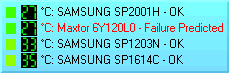
The hard disk with problem is displayed also in small status window
Currently more than 25 different languages are supported (Bulgarian, Czech, English, Hungarian, Italian, French, Romanian, Russian, German, Chinese, Chinese (traditional), Spanish, Portuguese-Brazil, Dutch, Greek, etc.) languages are supported. To download the newest language files, please check the language support page or use the latest possible version which contains the most recent language files.
I'm a system administrator. Is it possible to detect hard disk status of a remote computer?
It is possible to configure Hard Disk Sentinel to send e-mail and/or network message if a failure predicted, if a hard disk is too hot or if a critical SMART parameter is degraded. Also it can be used to send daily reports about the current status of hard disks. So (under the licensing conditions) it is possible to install Hard Disk Sentinel on more computers and the computers report the problems to system administrator.
This requires the registered and activated version of Hard Disk Sentinel installed on the remote computer(s).
If you want to remotely monitor a single client, you can use the "webstatus" feature of the software, to remotely log in by using any web browser.
For larger networks, Hard Disk Sentinel Enterprise Server, is the best solution which can manage many clients, display their details, logs and problems and issue alerts upon problem with any client.
Is it possible to monitor disk status WITHOUT administrator rights?
Yes, it is possible if Hard Disk Sentinel Professional runs as a service: then it can examine hard disk status even if there is no user logged to the computer or if the user does not have administrator rights (have limited rights only).
Generally in order to access the disk status, the software would require administrator user rights, this is why by default Hard Disk Sentinel needs to be run with administrator account.
It is possible to use the software differently: switch to NT Service mode after installation, by using Configuration -> Integration -> Use as service button. It switches Hard Disk Sentinel Professional to "service" mode: then it runs in the context of the SYSTEM account, invisible in the background as an NT service and works independenty from the current user, without any visible user interface.
This way it can work (detect status, issue alerts by e-mail, report problems) independently from the current user and his user rights, so works even if the current user has limited user rights - or if there is no logged user at all. So in service mode, Hard Disk Sentinel Pro is separated from the current user.
When running in service mode, the current user (with limited rights) can start a "Hard Disk Sentinel Tray" extension: with it, the user can get status information and tray icons showing the actual hard disk temperature, but without the opportunity to change options, configuration or perform tests etc. The idea is to let administrator use all functions/features - and if there is an user with limited user rights, he can still check status, but should have no rights to perform any special actions.
Please check https://www.hdsentinel.com/help/en/330_c_integration.html for more details about the service mode in general.
I can't see the hard disk status on my drive icons. What can I do?
Please enable "Modify default hard disk icons" on the Configuration, Disk Control panel. If you use Windows XP, you may need to upgrade to SP2 to view the disk status on icons.
I encountered problem with Hard Disk Sentinel. What can I do?
Please try to use the latest available version, especially if you just performed a complete (re)installation. If you use latest possible hardware (new hard disk, new SSD, recent RAID controller, recent USB adapter or similar hardware) then make sure to use the latest Hard Disk Sentinel version as some very new hardware may be only supported by that.
If your device seems not supported, try the latest possible beta version from the Download Hard Disk Sentinel page, as such versions have frequent updates for new devices / hardware.
Upon any questions, problems, the best is always to use Report menu -> Send test report to developer option. This way it is possible to check the current status and advise quickly.
No Performance information displayed. What is wrong?
The performance information is based on the Performance Counter objects of Windows (2000/XP/2003/Vista) systems. Hard Disk Sentinel reads these counters and displays performance information based on them. Hard Disk Sentinel has no control on these counters, how they work because they are controlled by Windows itself.
The operating system assigns performance counters to hard disks while booting. So if the disk is an external one and connected later (after Windows completed the booting sequence), the performance monitoring may not be possible.
If the performance information is missing for ALL disks, then disk performance monitoring is globally disabled. Please click Start -> Run -> CMD.EXE (to open a console window) and type diskperf -y (ENTER). You may need to restart the computer to let Windows create the performance counter objects on startup.
If the above command does not help, please try the following:
Click Start -> Run -> Regedit
navigate to the following subkey:
HKEY_LOCAL_MACHINE\SYSTEM\CurrentControlSet\Services\Perfdisk\PerformanceIf there is a value called Disable Performance Counters listed there, and it has a numerical value of one (1), just change it to zero (0), and reboot.
The full procedure is available at: http://technet.microsoft.com/en-us/library/aa998009.aspx
Fix performance counters under Win7 (thanks to Neolisk): Click Start, type cmd right click cmd.exe, and select Run as administrator.
At the prompt, type lodctr /r and press ENTER. This will repair the pointers (those are stored in the registry).
If it says (Disabled) next to a provider, you can enable it with lodctr /e:(provider name). Use for (provider name) the string between the [ ] at the beginning of the entry (more information at
this page).
Fix performance counters under Windows 10 (thanks to Yannis): if you attempt to use lodctr /r and receive Error: Unable to rebuild performance counter setting from system backup store, error code is 2, then please try the following method (enter the commands marked with bold):
C:\Windows\system32>lodctr /R
Error: Unable to rebuild performance counter setting from system backup store, error code is 2
C:\Windows\system32>cd ..
C:\Windows>cd syswow64
C:\Windows\SysWOW64>lodctr /R
Info: Successfully rebuilt performance counter setting from system backup store
C:\Windows\SysWOW64>winmgmt.exe /RESYNCPERF
and then reboot the system to repair performance counters.
If the above does not work, you can manually try to verify if the operating system detects the performance values. To do this, please start the performance monitoring tool from Microsoft:
Click Start -> Run and type "Perfmon".
On the bottom right side of the window (under the graphs) you can see a list of currently displayed
performance counters. Please click on them and press "DEL" button to remove all.
Then above this space (on the empty graph) please right click and select "Add Counters"
Under "Performance Objects" please select "PhysicalDisk"
Under "Select counters from list" please select "% Disk Time" (or "Disk Bytes/Sec" - these two
counters are displayed in Hard Disk Sentinel).
Under "Select instances from list" please select instances for your drives (eg. "0 C:") or select all.
Click on "Add" and then "Close".
Now you should see how the values are changing for the selected hard disks. Please copy or move some files to see how the graphs are changing, reflecting the actual disk usage or the transfer rate. You can compare the values displayed here and in Hard Disk Sentinel. These should be nearly the same (some differences is possible because of the different sampling times).
Here are more details about re-building performance counter objects of Windows. In case of a trouble (no performance information displayed), please check the following pages:
How to manually rebuild Performance Counter Library values
http://support.microsoft.com/default.aspx?scid=kb;en-us;300956&Product=winsvr2003
PerfMon Problems (Win7)
http://social.answers.microsoft.com/Forums/en-US/w7performance/thread/e90f231d-0014-457d-8b1f-5f342971597a
Update: if you experience that the real time performance monitoring works but after some time (for example after connecting/removing external hard disk, pendrive or similar storage device) it stops working, it may be caused by a function which allows performance monitoring when a new device (for example external hard disk) is connected. When this happens, Hard Disk Sentinel clears the performance object cache and re-detects the performance objects. On some systems (regardless of hardware configuration) this function causes that Windows disable performance monitoring at all.
If this happens, you may try to disable this function this way:
1) click "start" (Windows) button and to the search field enter REGEDIT
2) open REGEDIT
3) navigate to HKEY_LOCAL_MACHINE\SOFTWARE\Wow6432Node\HD Sentinel
(or HKEY_LOCAL_MACHINE\SOFTWARE\HD Sentinel under 32 bit Windows)
4) create a new STRING key named DisablePerfCacheClear and specify value of 1 for that.
If this is configured and restart, Hard Disk Sentinel will not issue this special function to clear performance object cache when it detects the change of configuration so hopefully the counters will continue working.
I have bad sectors and my disk health is 90%. Do I need to worry or ask for replacement drive?
It is important to know that any small, microscopic scratch or dust can cause some bad sectors on the disk surface. It is hard to avoid all of these problems and it is possible that the drive is not 100% perfect, but the health is still "excellent", so you do not need to worry about these sectors.
Especially, because these sectors are not used any more: the hard disk reallocated them and all read and write operations are redirected to the spare area instead.
The problem would start only when the number of these sectors increase (decreasing the health value of the disk).
Hard Disk Sentinel is the only software which is sensitive enough to detect the real number of problems and give textual description based on the real status of the hard disk.
The important thing is that it can detect any slight decrease in the health. For example, you can be alerted and can verify any (even very small) problems occurred with your hard disk - otherwise such problems may not be noticed, until the disk failure appears.
Please press F1 in the software to open the help and select "Appendix -> Text description" for more information. You can find the same information at: https://www.hdsentinel.com/help/en/index.html
If you are interested, please check the article describing How Hard Disk S.M.A.R.T. Works?
You can read about the problems with original SMART feature of the disk drives, and a possible solution built into Hard Disk Sentinel. The example also shows the importance
of being notified about all disk problems to prevent data loss and costly data recovery.
You should not ask your vendor for replacement drive in this situation. Hard disk manufacturers define different methods to verify when a hard disk should be replaced in terms of warranty: when they have "enough" problems (not only bad sectors) to reach a specified threshold. At this time, the hard disk has usually serious problems and may be seriously damaged which prevents data recovery. At this time, Hard Disk Sentinel displays 0 % health. You can ask for replacement hard disk only when the hard disk health is 0 %.
Hard disk health is low or recently changed or I just installed a new (used) hard disk. How can I perform a deep analysis?
All problems found during the lifetime of hard disk are reported in the text description field for this hard disk. If the hard disk health is not 100% and the text description shows problems (for example "bad sectors"), it is recommended to click on the "?" button next to this field as it describes the current situation and tell more information about what are the next steps. It is available online at https://www.hdsentinel.com/help/en/text_description.html
However, there may be even further problems which may not yet detected, for example on less frequently accessed surface areas. To reveal any problems (and correct them), it is recommended to use the hard disk tests available in Hard Disk Sentinel.
When the hard disk health changes, it is highly recommended an immediate backup of all stored data to an other hard disk prior any diagnostics.
In this situation, the most important is to verify if the hard disk status is stable (regardless of the health %) or if there are further problems which may not be revealed yet. This determines if the drive can still be used or if replace is required (warranty replacement is possible at 0% health, when the number of problems reach the threshold specified by the manufacturer).
Different hard disk tests are available in the Disk menu. First of all, try Disk -> short self test which generally checks hard disk components (heads, servo, internal memory, etc.). It may quickly report problem but it is possible that it completes without problems - as this test does not scan the entire hard disk surface. The next step is to use the Disk -> Extended Self-test option which is a hardware test with complete surface verification. If this completes without error, the hard disk surface seems to stable at the moment. However, if the health is less than 100%, it is expected that it will report an error at some point of the test and will stop.
If this happens, the Disk -> Surface Test option should be used. This contains different test steps which run in controlled and managed environment. For the first time, it is best to use the READ test. This may not fix possible issues but may reveal the amount and the seriousness of errors. If this completes without error (all data blocks will be green as on this image, then the disk already fixed all problems and it is safe to use it in the future.
However, if yellow and/or red spots (example image) or even larger areas (example image, example image) are affected, there are further problems expected which cause data loss.
These areas can only be analyzed and fixed by WRITE tests. The best method is to use the Disk -> Surface test -> Reinitialise disk surface which Overwrites the disk surface with special initialization pattern to restore the sectors to default (empty) status and reads back sector contents, to verify if they are accessible and consistent. Forces the analysis of any weak sectors and verifies any hidden problems and fixes them by reallocation of bad sectors (this is drive regeneration).
Because of its nature (overwrites all information) it cannot be used on primary (system) drive, only on secondary drive, for example on a drive used in external USB enclosure.
If you select Disk -> Surface test option, you can read the details of all such tests and how they affect stored data (read only or overwrite/delete all stored data).
To summarize, the following steps are the best to detect and repair hard disk problems:
1) Disk -> Short self test
2) Disk -> Extended self test
3) Disk -> Surface test -> Read test
4) Disk -> Surface test -> Reinitialize disk surface
To save time (especially on a high capacity hard disk eg. 8 TB or above) step 2 (Extended self test) may be not required and instead of step 4 (the Reinitialize disk surface test), the Write+Read test can be used to reveal and stabilize possible problems.
Further tests are possible to verify disk stability, noise and temperature levels (Disk -> Random seek test) or Disk -> Surface test -> Refresh data area which is useful for other devices (for example SSDs and pendrives, memory cards) to prevent "forget" effect of memory cells.
For more information, please check the Help -> Hard disk tests topic by F1 or online at https://www.hdsentinel.com/help/en/index.html, also in FAQ: https://www.hdsentinel.com/faq.php#health
Why other software displays different health? Which is correct?
Basically, as you may see, all software are based on the S.M.A.R.T.
(self-monitoring) values reported by the drive.
These contain status information about different sensors built into the drive
(both current values and ever measured).
Different software calculate health differently based on these attributes. Most software uses the relation between the "value" and the "threshold" fields for the attributes to measure how "good" an attribute is (and shows a health value based on that).
Researches showed that this method is wrong. It is not able to show the real number of problems and not able to predict failures as in most cases, it displays far better status than should. (if you are interested in further details, please check How Hard Disk S.M.A.R.T. Works? and check the example at the bottom: the failed disk seemed perfect in other software).
This is why the development of Hard Disk Sentinel was started.
Personally I'd only trust a software which can tell (by the text description) what kind of problems found or why the health is 100%, 97%, 60% or so (what kind of problems found or not found).
For example, it is possible that an other software noticed some errors but not properly identified all issues. That may report 95-100% status - even for a drive which has lots of problems as reported in the text description of Hard Disk Sentinel.
Hard Disk Sentinel offers numerous test functions to verify if the disk status is stable and/or if there are any furhter problems with the drive. If the drive status is stable, you may continue using it - with constant monitoring and using a software which is sensitive enough to report any new (even minor) problems, allowing to perform a backup (it is even possible to configure Hard Disk Sentinel to perform automatic backup upon that).
Please check https://www.hdsentinel.com/faq.php#tests for more information about the recommended steps in this situation.
If you can use Report menu Send test report to developer option in Hard Disk Sentinel, I can check the complete status of the disk drive and may advise based on that.
SSD Health displayed in other tools: other tools/software (especially but not limited to software offered
by manufacturers) usually do not care about the actual problems, errors, for example bad sectors on SSD (yes, SSDs
can also have bad sectors). Those SSD monitoring software can happily display 98% - 100% or so (if they may consider at least the SSD health decrease caused by wearout, completely ignoring real problems which
can also seriously affect the health. Ignoring those problems can cause false assumptions - as then the SSD (while seems "perfect" in
other tools) can fail completely or "just" data corruption/data loss can happen.
In contrast, Hard Disk Sentinel designed to consider BOTH the actual errors, for example but not limited to
bad sectors (mentioned in the text description on the Overview page) and also
the SSD wearout level when determining the Health % of the SSD.
I believe TRIM is enabled (fsutil shows that), but Hard Disk Sentinel shows it is DISABLED. Why?
There is a big difference between the TRIM feature being enabled and being active. Enabled just means that the OS will send the TRIM command to the SSD device (via the controller driver where the SSD is connected), but that does not guarantee that the SSD will actually receive the TRIM command.
The fsutil shows if the operating system in general uses the TRIM function or not.
The result of this is completely useless - as it returns 0 (TRIM "working") even if there is no SSD present in the system.
If the result is 0, it means that the operating system is prepared to send the TRIM command for the proper device (an SSD with TRIM function supported).
The question is: does the hard disk controller (and its driver) pass this command to the SSD(s) used in the system or block it?
The problem is that some hard disk controllers (and their drivers) may block the TRIM command, do not pass it to the SSD, even if TRIM is supported by the SSD.
(this is same as the "Acoustic management" command for hard disks may be blocked when using some disk controllers).
For example, if you'd have two or more SSDs (supporting TRIM) in your system, it may be possible that TRIM may be transferred properly to one of them - but not for the other(s) if the SSDs are connected to different hard disk controllers.
Hard Disk Sentinel checks the real usage of TRIM for each appropriate device (one-by-one). If it displays "disabled", it means there is a problem with the driver of the hard disk controller (if both the OS and SSD should support TRIM). Usually updating this driver from the Driver Zone may help. If not, using a different hard disk controller may also helpful.
The issue is very common with Marvell 91xx controllers. Because the driver of these Marvell controllers has several problems,
it may be better to replace it with Windows "Standard AHCI Controller" in the following way:
- open Windows Device Manager and locate the Marvell 91xx SATA 6G Controller (AHCI).
- try the update driver option and select to use "Standard AHCI Controller" driver for the controller.
After this change and restart of the system, TRIM will be really working and reported by Hard Disk Sentinel.
If you prefer, please use Report -> Send test report to developer option so I can check the disk controller and may advise on the proper driver used.