Hard Disk Sentinel Help - Surface Test
By using this test, the surface of the hard disk can be examined with different methods. Some of these
methods are safe for the stored data but others are destructive: the stored information are permanently erased
during the test operation.
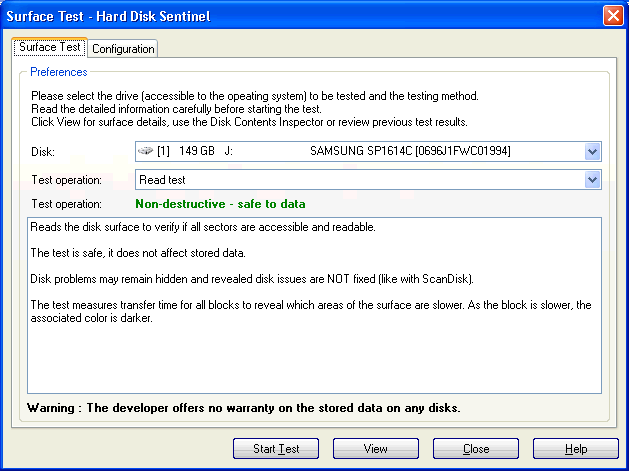
First it is required to select the hard disk and the test type to be started. The detailed description of
the test are displayed upon selection, and the software displays how the test affects stored data. It is
strongly recommended to read these information carefully before starting the test.
It is possible to use the "Multiple disk drives" button to select more disks to be tested at the same time using the same test method, options and settings. The amount of disks to be tested is not limited (just the overall system performance/resources may limit them).
The following tests are possible:
- READ Test - Reads the disk surface to verify if all sectors are accessible and readable.
The
test is safe, it does not affect stored data.
Disk problems may remain hidden and revealed disk issues
are NOT fixed (like with ScanDisk).
- WRITE test - Overwrites the disk surface with configurable pattern. Forces the analysis of
any weak sectors and verifies any hidden problems and fixes them by reallocation of bad sectors (this is
drive regeneration).
Enables better use of the disk as after the test the spare area will be used instead
of any problematic sectors.
Note: on the Configuration page, it is possible to configure the pattern to be written by
the write test. By default, Hard Disk Sentinel
writes zeroes (00 bytes) but it is possible to specify that all sectors should contain the sector numbers (may be
useful in later data recovery) or even random data. Also it is possible to specify any byte/byte sequence as overwrite
pattern. For example entering ABC in the byte/byte sequence field will cause that all sectors will contain ABC string
repeating. In this option, it is possible to enter hex sequence, for example 0x99 0x88 0x77 to write such bytes.
It is also possible to specify FILE=existing file name, then the contents of the file will be used as overwrite pattern.
- WRITE + read test (Pro version only) - Overwrites the disk surface with configurable pattern and then reads back
sector contents, to verify if they are accessible and consistent. Forces the analysis of any weak sectors and
verifies any hidden problems and fixes them by reallocation of bad sectors (this is drive
regeneration).
Enables better use of the disk as after the test the spare area will be used
instead of any problematic sectors.
- Read + WRITE + read test (refresh data area) (Pro version only) - Reads stored data from each blocks, writes back
the contents and finally reads the information and compare with original contents. By the extensive test,
an additional write cycle is used before writing back the contents to improve the efficiency of
the error correction (drive regeneration).
The operation is usually safe for the stored information but
data loss may occur if the system is not stable and/or upon power failure, overclocking,
memory/power supply/cable problems and other factors.
The test can be used to refresh the data
area of the storage device, without the need of complete erase but it is still recommended
to backup important data before this test.
- Reinitialize disk surface (Pro version only) - Overwrites the disk surface with special initialization pattern to
restore the sectors to default (empty) status and reads back sector contents, to verify if they are
accessible and consistent. Forces the analysis of any weak sectors and verifies any hidden problems and
fixes them by reallocation of bad sectors (this is drive regeneration).
Enables better use of the disk
as after the test the spare area will be used instead of any problematic sectors.
Very intensive
and time-consuming test, especially if the level (the number of overwrite cycles) is set
to higher value.
The simple version of this test is usually (incorrectly) called as low level format
by other tools. It can be effectively used to permanently destruct stored information
(Navso P-5239-26 standard data destruction).
- Disk Repair (Pro version only) - Reads the disk surface to verify if all sectors are readable and forces the disk drive to repair any problematic (pending, weak) sectors: restore the status to good or reallocate (replace from spare area) if required to prevent further use of the original sector.
The test is safe for stored data and the damaged file(s) will be readable, however file fragment(s) on damaged sectors may be corrupted. File(s) on the affected repaired sectors are listed when the test completed.
The test is best to be used to repair drives with weak sector(s) without the need of complete backup (and use of the Reinitialize disk surface test) and works on both system and secondary drives too. For more information, please check:
Hard disk case: weak sectors
Each tests have different configuration options:

In general, it is possible to configure the order of blocks to be tested and optionally the repeat count
can be specified (so the software runs the same test on the disk two or more times) and it is possible to
unmount all logical volumes (partitions) during the test. The latter is strongly recommended to prevent
other software and the operating system from accessing the disk during test. System drive (containing
the operating system, the root folder of the user or the swapfile of Windows) cannot be locked this way.
Because of the actual system running, only read test (which does not affect stored data) can be used on a system drive.
Note: some tests (for example the Reinitialise disk surface and Refresh data area tests) and test options are available only in the Professional version of the software.
Note: to prevent unauthorized people from using the tests (especially the write tests) the software
asks for the configured password before opening the test window.
Test Details
The software divides the data area to 10000 blocks, this is the surface map of the disk. When any block is
clicked by the mouse, the contents of the sector under the selected block are displayed. This way it is
possible to inspect the stored data and/or the written data after performing a write test. It is possible to
examine the sector contents (and load back the results of a previously saved test)
without starting a test by clicking the View button. This is safe for the stored data on the disk.
During the tests, Hard Disk Sentinel verifies the integrity of each sectors under the displayed blocks.
If the block is accessible and can be processed without errors, they are shown by green color. Darker green
color means that the sectors are slower and harder to process (read or write depending on the test type) but they are still good. Having some (especially random) darker green blocks are completely acceptable unless they form a continuous, larger area (especially with yellow/red blocks near).
The software filters out the
effect of slower transfer times at the end of the disks. If sectors are harder to access and can be processed
only after one or more retries, then the blocks are damaged but repaired, the software shows
the corresponding blocks with yellow. Red
color means that the block of sectors cannot be processed (read or written - according the selected test).
Further WRITE test may be required to force the drive to reallocate the problematic sector(s) in the block.
In case of damaged or bad blocks found, it is recommended to examine the whole data surface with one or more
WRITE test(s). During write tests, the software forces the hard disk to verify the status of the sectors on the surface
and re-allocate them to the spare area. This way the original (bad) sector will not be used and all further
read and write operations are redirected to the spare area. This is called regeneration. The resulting
hard disk functions better, it is even possible that on following tests it shows only good (green) blocks
because the bad sectors are no longer used. The side effect of regeneration is that the health of the drive
may decrease because more and more problems are revealed. So regeneration usually does not improve
the health (except if weak sectors were found and their status if stabilized).
During the tests if bad block(s) are found, it is possible that the software and/or the operating system
is not responding during the re-allocation. This can take some minutes or even hours - depending on the size
of the affected surface area. It is not recommended to cancel the operation and avoid reset or power off the computer.
It is possible that the disk controller or its driver may disconnect the not responding disk
so it disappears from the system. This is more likely possible with USB connection. If this happens,
it is recommended to connect the hard disk directly to the motherboard or a different controller and
start the test again.
Recommended use of the tests: start an extensive write test (for example with "reinitialize disk surface")
to verify if the disk surface is usable and force the verify and reallocation of any sectors at this time.
Like the random seek test, the software measures temperature levels during
these tests, so the highest possible temperature can be checked during this extreme load.
The tests can be started on other type of storage devices (not only hard disks), for example on
SSD devices, FLASH memory cards, pendrives also can be tested - and the "read - write - read" test
can be effectively used to prevent data loss caused by the "forget" effect of the memory cells.
The tests can be useful even if the hardware tests stop with an error, not supported
or not available.
Note: the unregistered version does not allow the starting of any test(s). It is only possible
to view sector contents with unregistered versions.
Note: during the tests, software and the operating system running in the background may affect
the performance (thus the resulting color) of each blocks.
To minimise this effect, the software prevents the screensaver from starting, prevents the computer
entering any standby or lower power management mode and using a higher priority. Anyway, it is recommended
to close all other background operations during the test and repeat the test if the performance decrease
effects a larger area (not only 1-1 blocks). The software has option to repeat the test to minimise
this momentary performance decrease.
Pause, resume, restart
Disk tests on high capacity hard disks may take long time, sometimes 12-24 hours or even more. If ever required to pause the disk test, just click on the disk surface map, on any of the white blocks (or the already processed green blocks) to open the Disk Contents Inspector window, showing the raw contents of the sector. The test paused while that window is displayed and if you close it, the test automatically resumes.
If it is required to cancel the test, then it is possible to restart the test later from a certain point: select Disk menu -> Surface test and the appropriate test type but before starting the test, select Configuration tab in this window. There is an option called Limit testing to specific data blocks where it is possible to configure the first and last block to be tested. For example to test the last 25%, specify first block = 7500, last block = 9999.
Hard Disk Sentinel does not automatically restore and continue a previously started test. When the test stopped, the software could not check (have no control about) what exactly happens with the drive after the test stopped, it could not guarantee successful test operation in this case. It is possible to have complete reboots, Windows/system updates, even device connection (hardware) changes and so - which may affect the whole operation of the disk - and the result of the test.
This is especially true if there is something unwanted / unforeseen happens (like power loss,
power failure, or over-voltage when the power came back). These may even cause damages on any part of the drive (generally any hardware) so even if previously tested for example 92% of the drive and then continue, we can't be really sure that things are 100% perfect.
In such situations, the user may consider if he can re-start the whole test - or restart from a specific point, for example from the last known tested block.
Examples

The end of the usable data area is bad. The bad blocks form continuous areas, suspecting a serious surface problem.
Notice the yellow damaged block near the lower left corner: it is neighbor of a bad block and
will probably turn to bad at later use. Even non-damaged blocks are very slowly accessible.
It is recommended to check the location of the first problematic block with the mouse pointer and
create partition(s) which do not use the following area.

The hard disk showed many problems. It stopped during reading and writing operations and its health was relatively
low (30 %). There were different bad, damaged and slowly accessible blocks.

The same disk after many "Reinitialize disk surface" tests. The weak sectors are fixed and the bad sectors
are reallocated (the health decreased to 20%) but the overall surface is improved and the disk
can still be used for some time (but not recommended to store important data because of the problems).
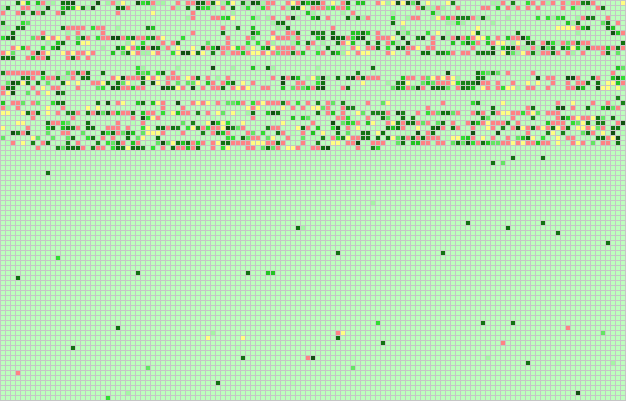
A typical low health (22 %) hard disk. Many write tests (especially the re-initialise disk surface test)
can improve the status but it is not recommended to use the first half of this drive (by creating partition(s)
only at the second half).


 Introduction